Turn a Screen Recording into a Bug Report for GitHub or Linear
2026-11-18
A developer working in Claude Code can give it a GitHub issue number and ask it to read the report and comments before touching the code. A team using OpenAI Codex in Linear can mention @Codex on the issue and follow its progress there. In both workflows, the bug report tells the agent what to investigate.
Across those setups, whoever picks up the bug needs to know what you did, what you expected, and what happened instead. If the report just says “upload credits are missing,” a developer has to ask whether the balance was wrong or the charge was missing from the Activity page. That distinction changes where they start looking.
ThinkRun helps you record the issue and share it with the next person working on it. You can now send a reviewed report from a recording to GitHub, Linear or Slack, with selected evidence and links back to the recording.
You show what happened. ThinkRun prepares a draft. You check it, choose what to include, and approve what gets sent.
From a screen recording to a report
Start by connecting the destination you want to use in Settings → Integrations. Authorize your account or workspace, then return to the recording. You do not need to create your own developer app or supply API keys.
1. Record the steps and say what you expected
Record your screen while you repeat the interaction. Explain what you did, what you expected to happen, and what happened instead. Include the steps leading up to the problem so the recipient can see the starting point. Add relevant details such as the app version, browser, account role and whether it happens every time.
That matches how testers describe using recordings: one QA discussion treats them as a supplement to written details. A video shows the interaction, but environment differences and missing earlier steps can still make a bug hard to reproduce.
You can also upload a video you already have. Our recording guide covers the ways to capture or upload it.
2. Prepare the report
Once processing finishes, open the recording and choose Share → Integrations. Pick GitHub, Linear or Slack, choose an available repository, team or channel, and prepare the report.
If the recording covers several problems, you can choose one identified issue or combine the feedback. That lets you decide how much belongs in this particular handoff.
3. Review the wording and visual evidence
Read the title and report. Correct anything the draft misunderstood, and check that the expected behavior matches what you meant.
Select screenshots that help explain the issue. Check each frame against the recording: a nearby screenshot may provide context without showing the whole problem.
The original recording stays available through its share link, so someone can follow the sequence rather than guessing from a single frame.
4. Check the preview and approve it
Continue to Review and check the destination and the actual report or message. Approve it, then choose Create GitHub issue, Create Linear issue or Send to Slack.
Open the delivery receipt to see what arrived. The recipient can read the report and follow its links back to the evidence you recorded.
Choose where the work continues
| Destination | What the recipient receives |
|---|---|
| GitHub | A GitHub issue with the reviewed report, selected hosted screenshots inline, and links to the recording and screenshot moments. |
| Linear | An issue in the selected team, with the report, hosted screenshots inline and recording links. |
| Slack | A Summary message or Full report in the selected channel, with labeled recording, screenshot and moment links. Images and video are not uploaded to Slack. |
For GitHub, install the Think-Run App on the repositories you want to use, then connect your GitHub account in ThinkRun.
For Linear, authorize your workspace and choose an accessible team when you prepare the issue.
For Slack, add ThinkRun to a channel you belong to and refresh the channel list in ThinkRun. Both you and the app must be members.
Slack connections are currently available through public distribution for pilot installations; ThinkRun is not approved in Slack Marketplace. You can connect Linear from ThinkRun while its directory listing is still pending.
See the report before it leaves ThinkRun
The review step is where you turn a generated draft into the update you actually want to send.
Here is a real Linear review screen from our own workflow:
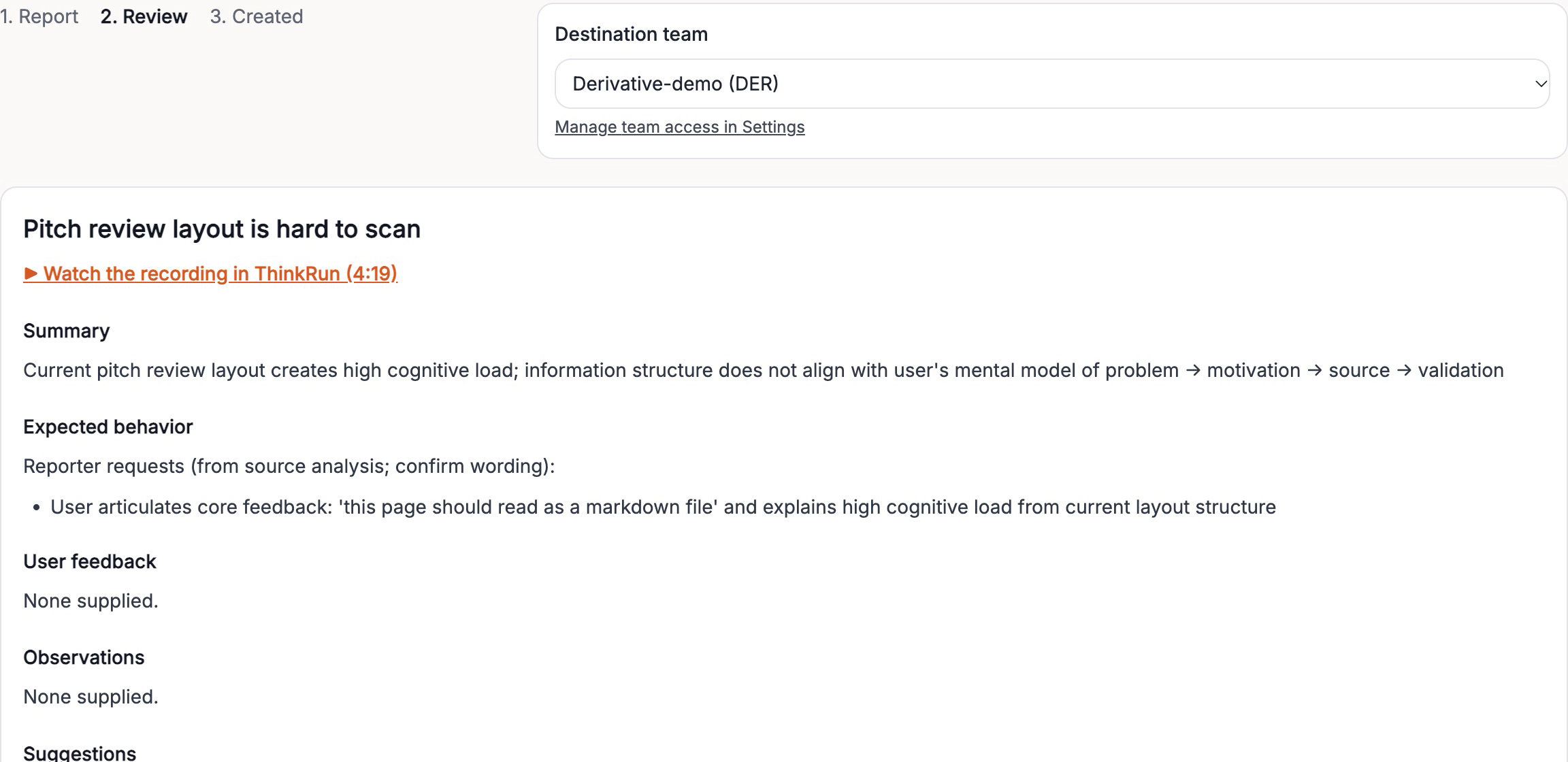
Actual ThinkRun review screen, cropped to show the report. This is an example draft, not a sent issue.
In Slack, you also choose how much of the report belongs in the channel.
Summary message is the default. It sends a shorter handoff, including evidence links, and the preview identifies content left out. Choose Full report when the recipient needs every section you approved.
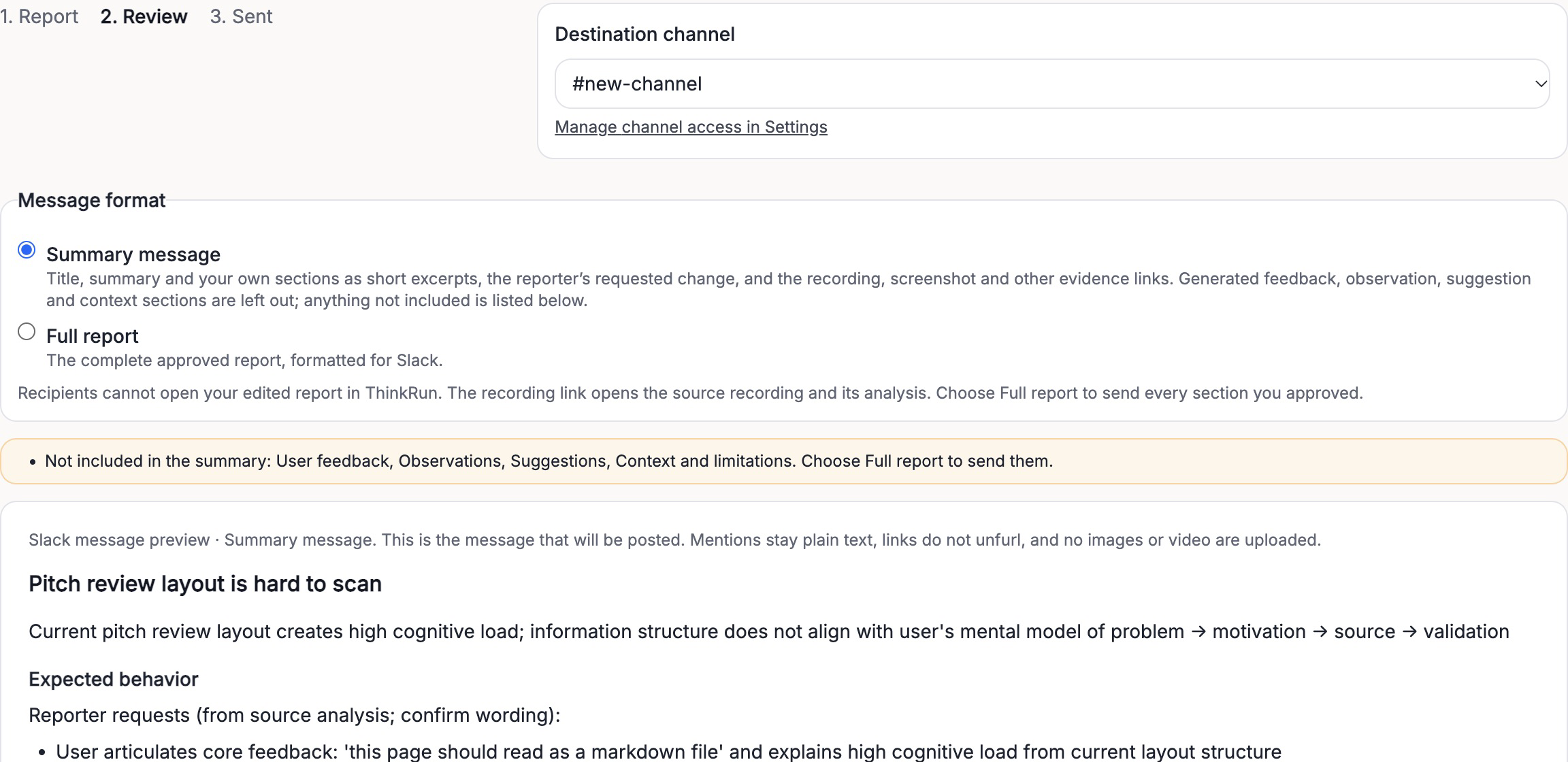
Actual ThinkRun Slack review screen, cropped to show the format choices and report. This example draft was not sent.
The recording link opens the source recording and its analysis. Your edited report is delivered in the issue or message; that link is not a separate page containing your edited version.
A recording behind a real GitHub request
We have used this handoff for feedback on ThinkRun itself. Issue #20 asks for integrations to have their own place in the recording Share dialog.
The source recording shows an earlier version of that interface. It captures the layout request; the setup steps above describe the current release.
Open the original recording and compare it with the issue. This example is UI feedback—the same recording-and-report workflow can help with a layout request as well as a bug.
Using a GitHub bug report with Claude Code or a Linear issue with OpenAI Codex
You may be sending the report to another developer, or bringing it into your own coding session.
In one developer’s GitHub workflow, they give Claude Code the issue number, ask it to read the issue and comments, then review its questions and plan before work starts. Other developers assign a well-defined issue directly to Copilot and come back to review its pull request. GitHub workflow discussion
After creating a ThinkRun report in GitHub, you can use that pattern in a coding session with access to the repository and issue. For example:
Read issue #123 and its comments in this repository. Inspect the linked report and screenshots with your available tools. Tell me what evidence you could access and what is missing. Summarize the expected behavior and propose an investigation plan before changing code.
This is an example request, not a ThinkRun command. The agent needs tools and permission to open the evidence. If it cannot read the recording, give it accessible report text, screenshots and relevant moment references.
There is also a shorter loop when you are already working with an agent: check the running app, record what still looks wrong, and bring that feedback into the current session. A recent Claude Code discussion describes the friction of explaining visual changes through long messages and manually annotated screenshots.
If your team has connected Codex to Linear, mention @Codex on the reviewed issue. Codex posts progress updates there and links to its cloud task for review. Codex integration for Linear One developer describes expanding a rough Linear ticket with Claude, assigning it to Cyrus, and reviewing the resulting pull request. Linear workflow discussion
If you start in Slack, your team can discuss the report there and decide which issue to hand off. ThinkRun’s delivery does not automatically start a coding agent. After a proposed fix, repeat the original interaction and check the result.
What to check before sharing
Review the source recording and its analysis as well as the report you edited. Selecting screenshots for the report does not redact the original recording. Evidence links follow the recording’s share-access settings.
ThinkRun sends hosted screenshots and recording links to GitHub and Linear; it does not upload the video file there. Those services may cache images. Revoking a recording link does not remove report text or copies a recipient already has.
Try it with the next issue you find
Choose an integration, connect your account, and record one interaction you need someone else to see. Review the report and send it where that person already works.