How to Give Claude Code a Screen Recording
2026-09-24
Watch the 2½-minute walkthrough, then follow the steps below to share a recording with your agent.
Watch on YouTubeA screen recording can show a bug that is hard to explain in words. With ThinkRun, you can record the steps, say what you expected, and share the transcript, screenshots, and timestamps with Claude Code.
The walkthrough video shows how to prepare that handoff. It covers recording and sharing; it does not demonstrate an agent diagnosing or fixing a bug.
Jump to a step
- 00:00 — Record your screen
- 00:22 — Stop and process the recording
- 00:42 — Choose what to share
- 00:54 — Open the share page, JSON, and Markdown
- 01:12 — Match screenshots to the transcript
- 01:39 — Inspect timestamped evidence
- 02:01 — Revoke links and embed recordings
What your agent receives
ThinkRun makes several parts of a recording available together: the video, what you said, screenshots, and timestamps. A share page lets a person replay it. Markdown and JSON versions give an agent a way to read the accompanying evidence and find the linked images.
This workflow does not depend on an agent accepting a raw video upload. It uses the transcript and image evidence. The agent needs tools that can retrieve the shared content and inspect images; a URL alone does not grant those capabilities.
1. Record the steps and explain what you expected
Open ThinkRun and choose Record your screen. Select the screen or window you want to capture, then walk through the problem.
Describe the action, the expected result, and what happened instead. For example: “I click Save. I expect the new name to appear. The old name stays on the page.” This is a sample narration, not a bug shown in the walkthrough.
Keep the recording focused on one problem. Capture the steps leading up to it so the agent can distinguish the starting state from the failure. Stop sharing when you have shown enough.
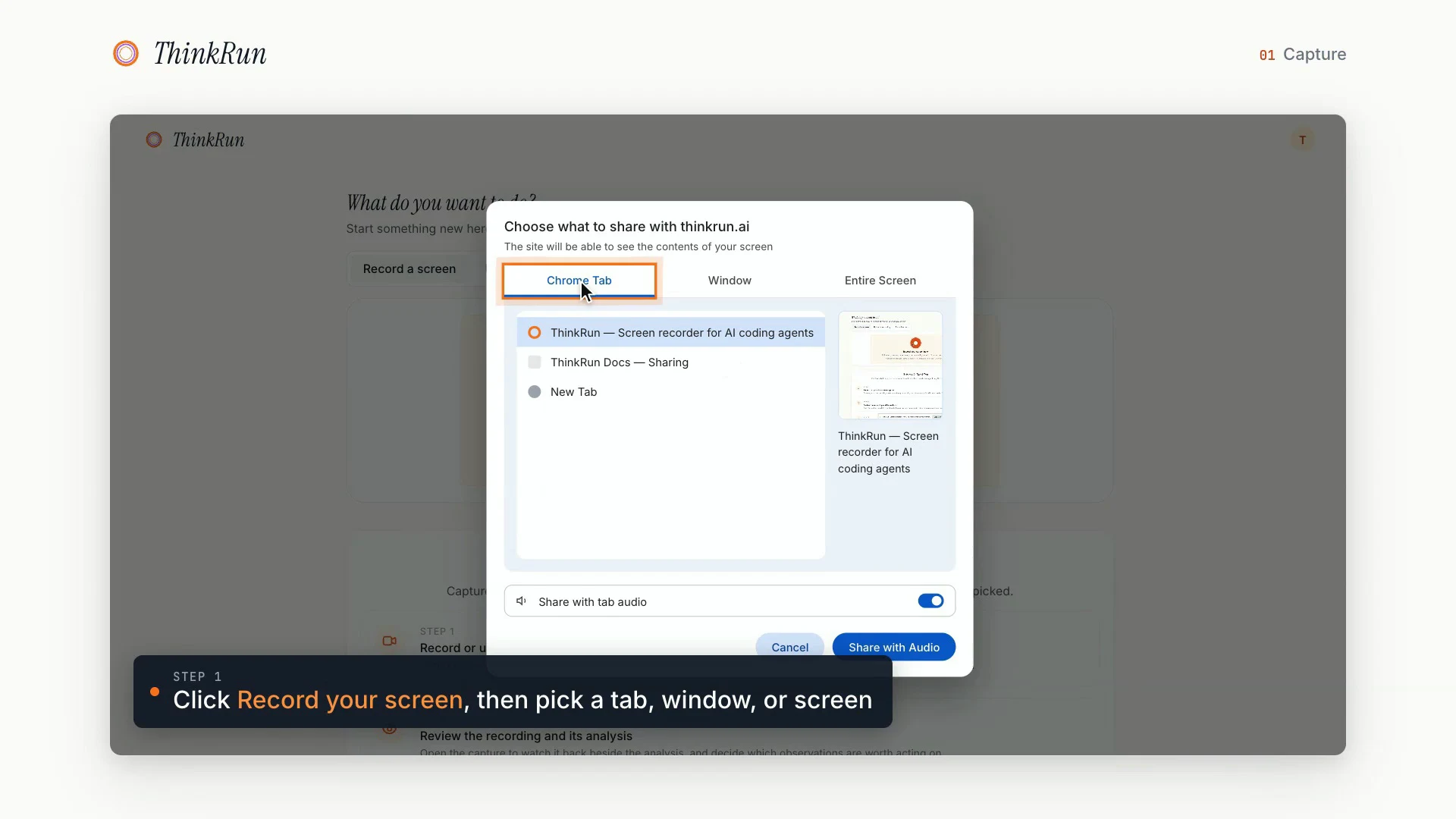
At 00:08 in the walkthrough, choose the tab, window, or screen you want to record. A single tab helps keep unrelated content out of view.
2. Review the transcript and screenshots
After processing, review the recording's transcript and screenshots. Check that the moment you care about is present and that the words match what you said. Screen interpretations are useful clues, but they can be wrong; compare them with the actual image.
In this video's own example, the narrator selects the recording control and describes the screen. Later, the walkthrough shows those spoken observations alongside screenshots and their timestamps. The useful connection is between what was said and what was visible at that moment.
Before sharing, check for private account details, customer data, keys, and unrelated tabs. If a secret is visible, create a clean recording or remove the sensitive section before sharing it. Revoking a link later cannot undo a copy someone has already downloaded.
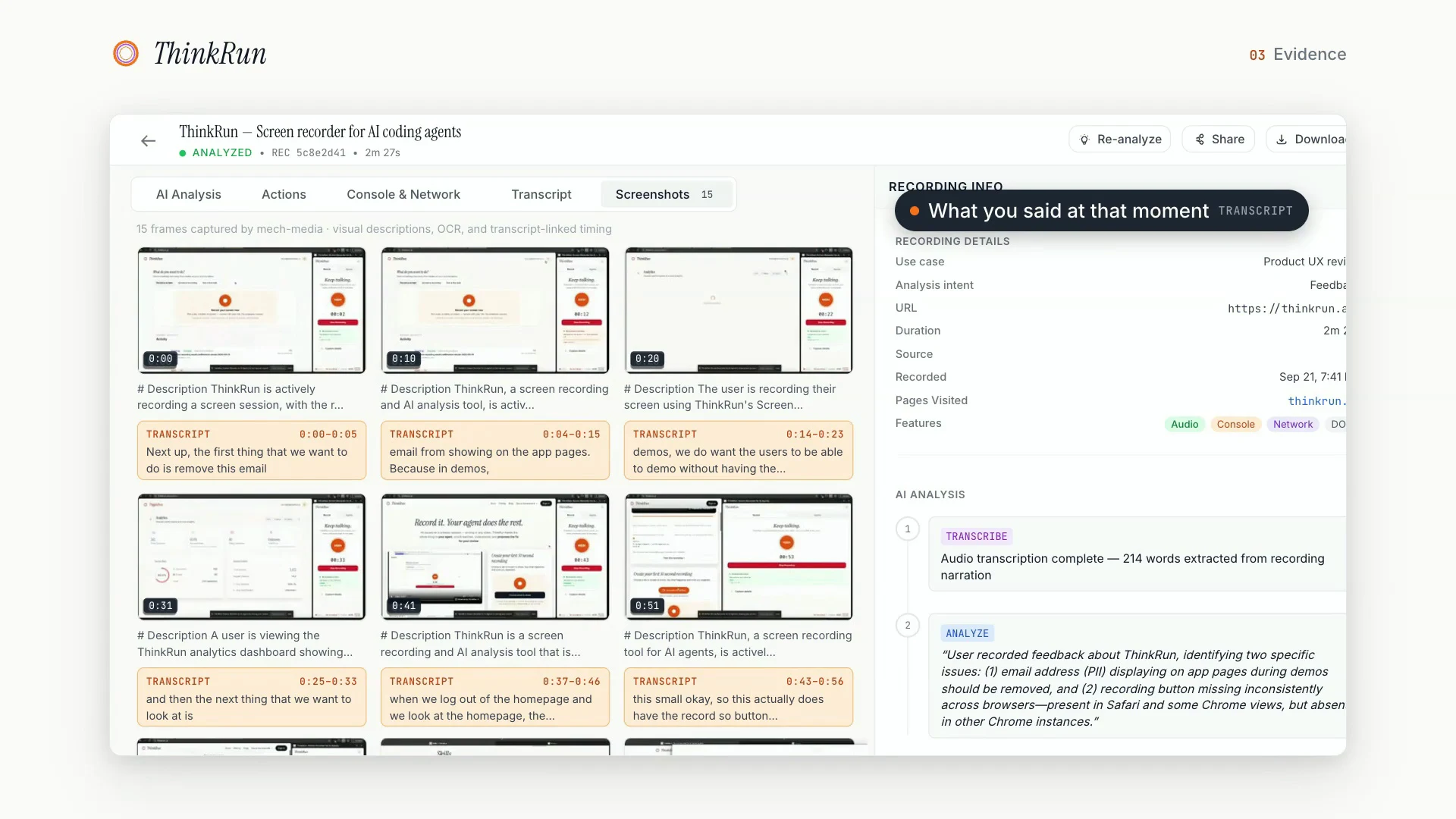
At 01:20, the screenshot grid pairs visual evidence with narration. The timestamps inside the grid refer to the source recording, not this walkthrough's playback time.
3. Create a share link
Choose what the recipient needs. The walkthrough shows optional console-log and network-request sharing; review those details before including them.
Use the replay page when a person needs to watch the recording. Copy the Markdown or JSON link when an agent needs to inspect the evidence. Use the links ThinkRun provides rather than guessing a download URL.
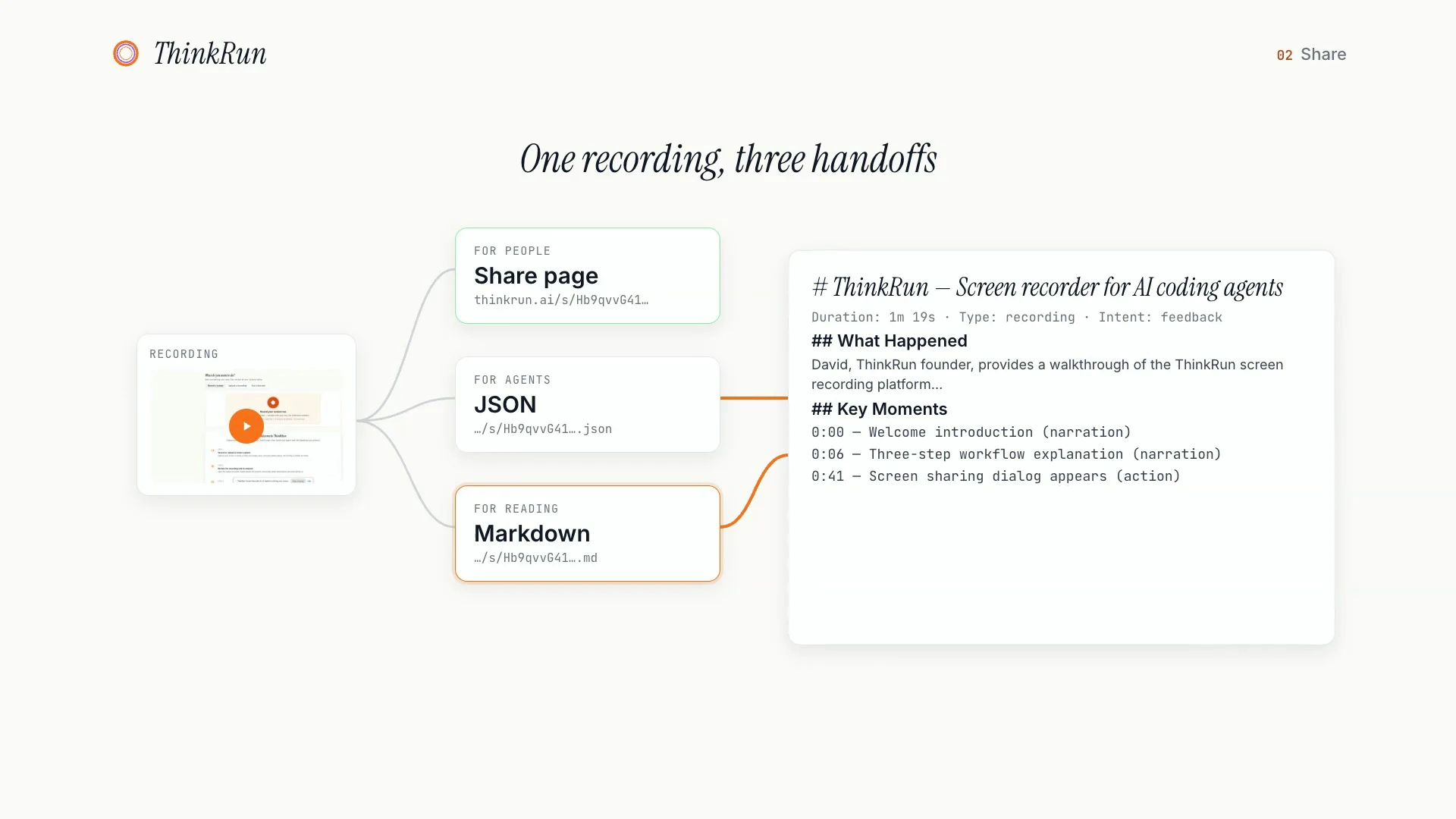
At 01:07, the video illustrates three ways to share the same recording. The Markdown excerpt shows a summary and key moments; the shortened links are illustrative, not links to copy.
4. Give the recording to Claude Code
Open the project you want the agent to investigate. Paste the recording's Markdown link with a clear request:
Read this ThinkRun recording's Markdown: <paste the Markdown share link>
Inspect the linked screenshots, especially the moment I describe the problem.

Summarize what happened and cite the relevant timestamps.
Separate observed facts from possible causes.
Then inspect this project's code and suggest what to check next.
If you cannot open a link or image, tell me what you could not access.
Check the agent's summary before asking it to change code. A good summary points to specific evidence and identifies what remains unknown. If the agent cannot fetch the shared files, use its supported file and image attachment tools to supply the evidence directly.
The same handoff can work with Codex or another coding agent that can read the shared text and inspect the images. The tool setup may differ. For controlling a browser live, see how to give Claude Code access to your browser.
5. Keep a record of the result
Once you have a proposed fix, repeat the original steps and compare the result with the recording. The recording establishes what happened; checking the application again establishes whether the behavior changed.
For a separate example that follows this loop through a real fix, read how a screen recording became a shipped fix.
Walkthrough transcript, edited for clarity
The following condenses the narration and removes repetition. Use the video for the full demonstration.
00:00 — Recording. From the ThinkRun start screen, choose Record your screen. Select a window or your screen and begin recording. Stop sharing when you are done.
00:22 — Processing. After the recording finishes, the spoken explanation is broken into contextual sections that an agent can read.
00:42 — Sharing. Choose your sharing settings. Console logs and network requests can be included when they are relevant. Create the share link.
00:54 — Output formats. The share page contains the video. JSON provides structured information, and Markdown presents much of the same information in a readable format.
01:12 — Screenshots and narration. Screenshots are paired with what was said at that point. You can compare the screen interpretation with the transcript and the image itself.
01:39 — Evidence. The recording makes screenshots, the video, observations, and timestamps available for inspection.
02:01 — Link controls. You can revoke a share link. You can also embed a recording on a web page, for example to explain a product workflow.
Record your next bug report
Open ThinkRun, record one workflow, and review the evidence before sharing it. If you are choosing a recording tool, our Loom alternatives for developers and AI coding agents guide compares the different kinds of handoff.
Frequently asked questions
How do I give Claude Code a screen recording?
Record the workflow in ThinkRun, review the processed evidence, and copy its Markdown share link into your Claude Code session. Ask the agent to read the transcript and inspect the linked screenshots. It needs tools that can retrieve those files and view images. If it cannot access them, provide the files through the attachment tools available in your setup.
Does this require Claude Code to watch a raw video file?
No. This workflow gives the agent readable text and linked screenshots from the recording. The replay video remains available for a person to watch. The walkthrough does not establish which raw video formats a particular agent or model accepts.
Is a screenshot enough to report a UI bug?
A screenshot can be enough for a static layout issue. A recording is useful when the order matters: a button changes state, a dropdown resets, or a page behaves differently after a click. Include what you expected and what happened instead so the agent can interpret the sequence.
Should I share Markdown, JSON, or the replay page?
Use the replay page for someone who wants to watch. Markdown is a convenient starting point for an agent to read the summary and evidence links. JSON is useful for tools that need structured fields. Check the actual output before sharing; the format does not guarantee that every detail of a recording was captured.
Can I give the same recording to Codex or Cursor?
Yes, when your agent setup can read the shared text and inspect its linked images. The handoff uses Markdown or JSON rather than a Claude-specific format. Fetching links and opening images depend on the tools and permissions available in that session.
Do I need to include console logs and network requests?
Only when they help explain the problem. The walkthrough shows these as optional sharing choices. Review them first because request details and logs can contain private information. A visual issue may be explainable with the transcript and screenshots alone.
Can I revoke access to a shared recording?
The walkthrough shows a control to revoke a share link. Revocation stops access through that link, but it cannot remove files or text already copied by a recipient. Review the recording before creating a link.